Prompt A/B Testing
Prompt A/B Testing compares full permission-prompt configurations against each other and promotes the strongest performer. Unlike content A/B testing, which tests notification wording, Prompt A/B Testing tests how you ask visitors to subscribe — including testing entirely different prompt types against one another (for example, a Slidedown Prompt against a Subscription Bell).
Accessing Prompt A/B Testing
- Navigate to your app
- Click Prompt A/B Testing in the app menu (under Testing)
Test List
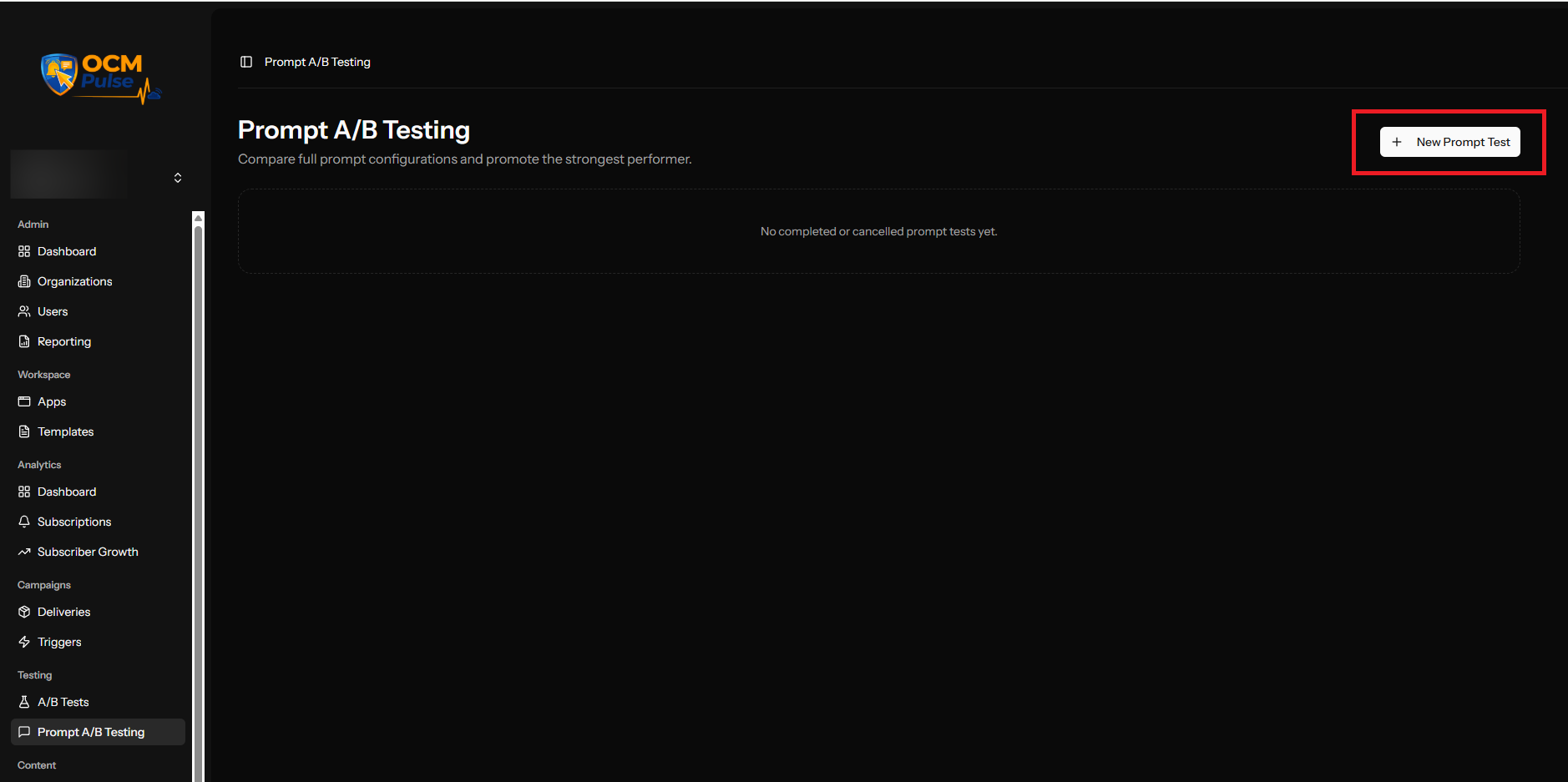
View all completed or cancelled prompt tests. New apps start with an empty list and a New Prompt Test button.
Creating a Test
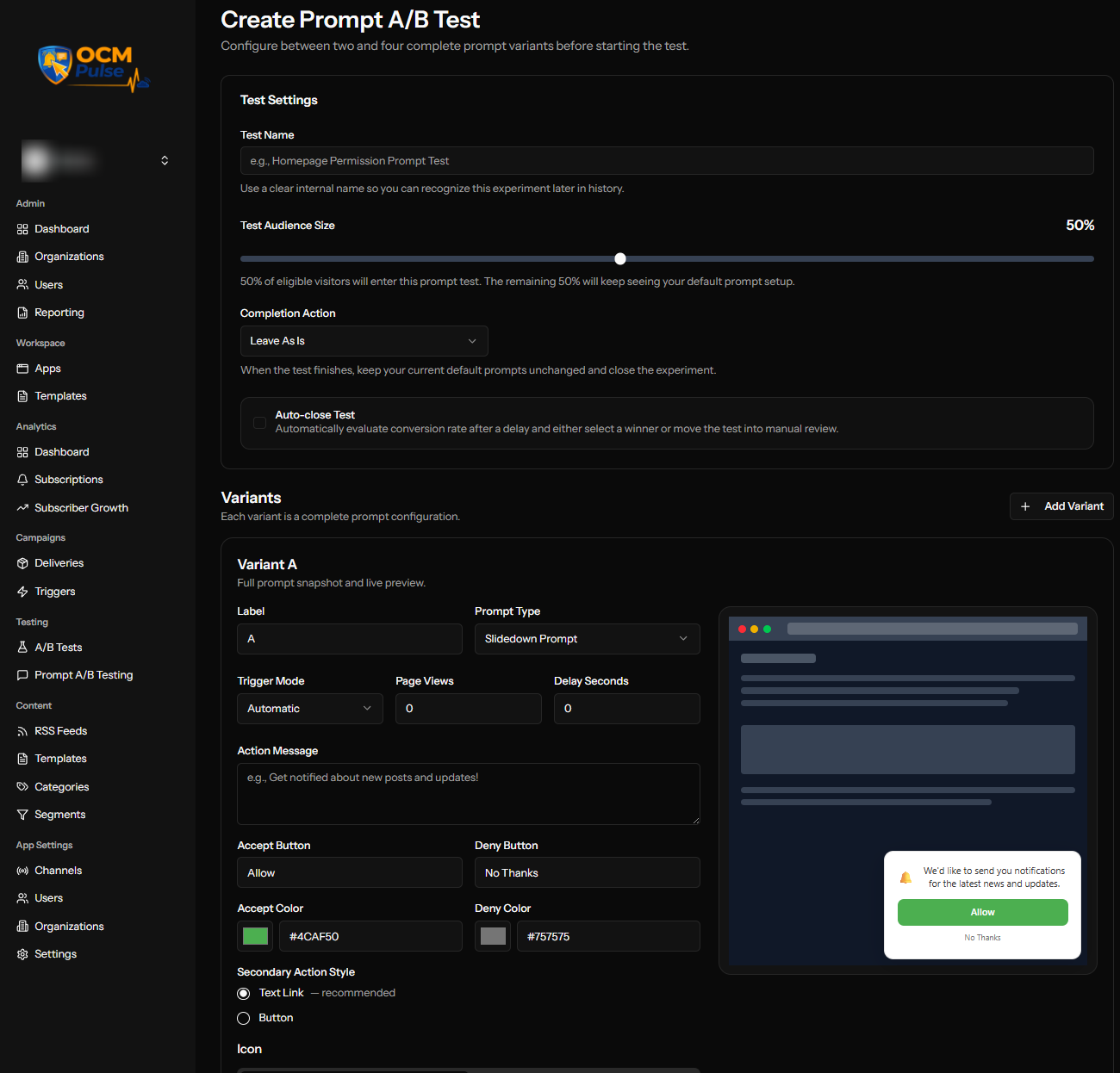
1. Test Settings
| Setting | Description | Range / Options |
|---|---|---|
| Test Name | An internal name so you can recognize this experiment later in history | Required |
| Test Audience Size | The percentage of eligible visitors who enter the test. The remaining visitors keep seeing your current default prompt setup. | Slider, default 50% |
| Completion Action | What happens to your default prompt settings when the test ends | Leave As Is — keep your current defaults unchanged and close the experiment. Apply Winner To Defaults — promote the winning variant's configuration to become your app's actual default prompt setup. |
| Auto-close Test | Automatically evaluate conversion rate after a delay, then either select a winner automatically or move the test into manual review | On/Off |
Completion Action is the key thing to get right before starting a test. Set to "Apply Winner To Defaults," a finished test doesn't just report a winner — it overwrites your app's live default prompt configuration with it. If you want to review results before anything changes, leave this on "Leave As Is" and apply the winning configuration to your defaults manually afterward.
2. Create Variants
Add 2–4 variants. Each variant is a complete, independent prompt configuration — not just different wording on the same prompt type.
| Field | Description |
|---|---|
| Label | Identifies the variant (A, B, C, D) |
| Prompt Type | Slidedown Prompt, Subscription Bell, Category Slidedown, or Inline Prompt |
| Trigger Mode | Automatic (shown based on Page Views / Delay Seconds below) or Manual (triggered via SDK) |
| Page Views / Delay Seconds | For Automatic trigger mode: how many page views and/or how long to wait before showing this variant |
| Action Message | The message shown to users (max 255 characters) |
| Accept Button / Deny Button | Button text and color for each |
| Icon | Optional image shown in the prompt |
| Position | Desktop Position (5 placements) and Mobile Position (fewer options — full-width on mobile, only vertical placement applies) |
Subscription Bell variants get a reduced Position choice (Bottom Left / Bottom Right only, rather than the full 5-option desktop set) plus a Size option (Small/Medium/Large), matching the standalone Subscription Bell configuration.
Each variant has its own live preview panel, showing exactly how that configuration will render.
3. Save as Draft
Click Create Draft to save. Like content A/B tests, the test starts in Draft status and does not run until you start it.
Test Lifecycle
Starting a test's exact click-through steps and the manual winner-selection screen were not directly observed and are described below by analogy with content A/B Tests. Everything else in this section — the Viewing Results structure and the Apply Winner to Defaults behavior — has been confirmed against a real completed test.
Starting a Test
- Open a Draft test
- Review settings and variants
- Click Start Test
- Confirm the action
Visitors are split according to your Test Audience Size setting; each group in the test sees a different variant, and conversion is tracked per variant.
Viewing Results
Confirmed against a real completed test. Each variant's card shows:
| Field | Description |
|---|---|
| Prompt Type | The variant's configured prompt type |
| Exposures | How many visitors saw this variant |
| Subscriptions | How many of those exposures converted to a subscription |
| Conversion | Subscriptions ÷ Exposures, as a percentage |
The winning variant is marked with a "Winning Variant" badge. The test header shows Created and Completed dates alongside the variant count.
Selecting a Winner
- Automatic (if Auto-close Test is enabled): the system evaluates after the configured delay and applies the Completion Action you set.
- Manual: open the test, review variant performance, and select a winner explicitly. (The exact manual-selection screen wasn't directly observed — described here by analogy with content A/B Tests.)
Confirmed: setting Completion Action to Apply Winner To Defaults does rewrite the app's live default prompt configuration (e.g., Permission Prompts) to match the winning variant — this is not just a claim in the UI copy, it's been verified against a real test.
Cancelling or Deleting
Expect the same rules as content A/B Tests: cancellable while in Draft or Testing status; deletable only while still in Draft.
Prompt A/B Test vs. Content A/B Test
| Use Prompt A/B Testing When... | Use Content A/B Testing When... |
|---|---|
| Optimizing how you ask people to subscribe | Optimizing what a notification says |
| Comparing prompt types against each other (e.g. Slidedown vs. Bell) | Comparing title/body/image variations |
| Trying to improve opt-in rate | Trying to improve click rate |
Example Test Scenarios
Testing Prompt Type
Variant A: Slidedown Prompt, appears after 5-second delay Variant B: Subscription Bell, persistent, bottom-right
Goal: Find out whether a soft slidedown or an always-available bell converts more visitors.
Testing Trigger Timing
Variant A: Slidedown Prompt, shown immediately (0 page views, 0 second delay) Variant B: Slidedown Prompt, shown after 2 page views and a 10-second delay
Goal: Compare showing the prompt right away against waiting for engagement first.
Testing Category Opt-In
Variant A: Standard Slidedown Prompt (subscribe to everything) Variant B: Category Slidedown (subscribe to specific topics)
Goal: See whether letting users choose topics up front increases or decreases opt-in rate.
Next Steps
- Configure standalone Permission Prompts
- Set Up Categories if testing a Category Slidedown variant
- Content A/B Testing for testing notification wording instead