Categories Overview
Categories help you organize notifications and allow subscribers to choose their preferences. They serve two purposes:
- Organization - Group and filter deliveries in the dashboard
- Subscriber Preferences - Let users choose what notifications they want
Accessing Categories
- Navigate to your app
- Click Categories in the app menu
The Categories page has two tabs: Categories, where you manage the categories themselves, and Routing, where you can automate which category gets assigned based on a delivery's URL. See Routing Rules below.
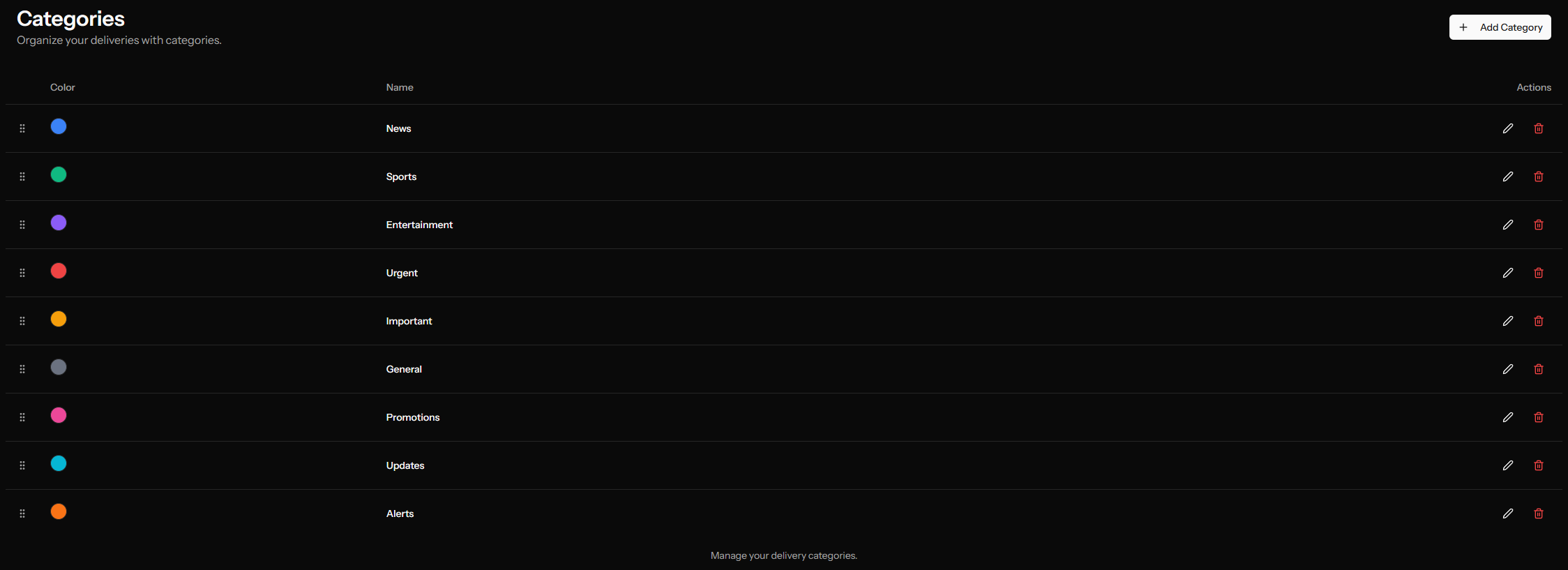
Category Properties
| Property | Description | Limit |
|---|---|---|
| Name | Display name shown to users | 100 chars |
| Tag Key | Internal identifier for segmentation | 50 chars |
| Description | Explanation of the category | 255 chars |
| Color | Visual indicator in dashboard | 9 preset colors or custom hex color |
Tag Key
The tag key is used to:
- Identify the category in subscriber tags
- Create segments based on preferences
- Reference in API calls
It's automatically generated from the name but can be customized.
Rules:
- Lowercase only
- Letters, numbers, underscores
- No spaces or special characters
Creating Categories
- Click Add Category
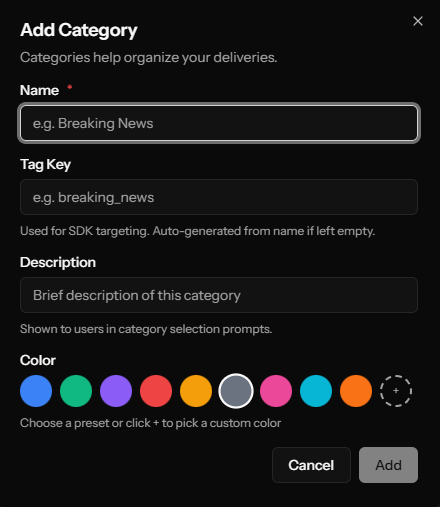
- Fill in the form:
- Name - User-facing label (required)
- Tag Key - Internal identifier for segmentation (auto-generated from name if left empty)
- Description - Brief explanation of the category
- Color - Pick from presets or use color picker
- Click Create
Setting Colors
Colors help visually identify categories in the deliveries list. Choose from 9 preset colors or use the custom color picker:
| Preset | Hex |
|---|---|
| Blue | #3B82F6 |
| Green | #10B981 |
| Purple | #8B5CF6 |
| Red | #EF4444 |
| Amber | #F59E0B |
| Gray | #6B7280 |
| Pink | #EC4899 |
| Cyan | #06B6D4 |
| Orange | #F97316 |
You can also use the color picker for any custom color.
Managing Categories
Reordering
Drag and drop categories to change their order. The order affects:
- How they appear in the Category Slidedown prompt
- Display order in dropdown menus
To reorder:
- Drag a category row up or down
- Drop in the desired position
- Click Save All Changes
Editing
- Click the edit button on a category row
- Modify name, color, or description
- Click Save
Deleting
- Click the delete button on a category row
- Confirm deletion
Deleting a category doesn't delete associated deliveries, but they will become "Uncategorized."
Saving Changes
After making changes (reorder, edit, or delete):
- Click Save All Changes to persist
- Or click Discard Changes to revert
The banner shows unsaved changes when present.
Using Categories
In Manual Notifications
When creating a notification:
- Select a category from the dropdown
- Category is assigned to the delivery
In RSS Triggers
Configure an RSS trigger with a category:
- Edit the RSS trigger
- Select a category
- All notifications from this trigger get the category
In Category Slidedown
If using the Category Slidedown permission prompt:
- Go to Channels → Web Push → Prompts
- Configure the Category Slidedown
- Add categories from your list
- Users select their preferences when subscribing
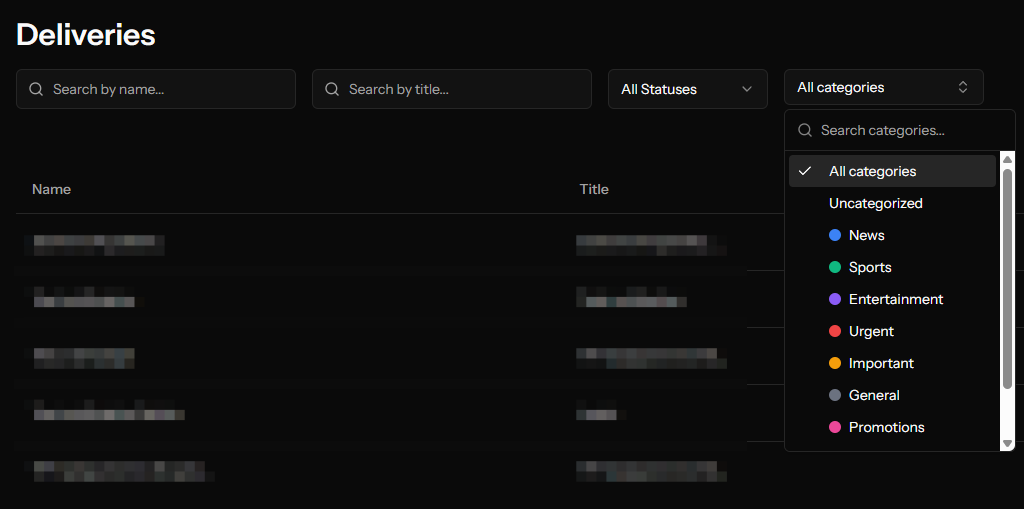
Filtering Deliveries
In the Deliveries list:
- Use the Category filter
- Select a category to see only those deliveries
- Select "Uncategorized" to see deliveries without categories
Routing Rules
Routing Rules automatically assign a category to a delivery based on its destination URL, so you don't have to pick one manually every time. This is particularly useful for triggers that pull in content automatically, like RSS Triggers and Flash Trigger.
Accessing Routing Rules
- Navigate to your app
- Click Categories in the app menu
- Click the Routing tab
How It Works
Each rule matches a delivery's Click URL against a pattern. The first active matching rule wins — rules are evaluated in order, from top to bottom.
| Field | Description |
|---|---|
| Active | Enable or disable the rule without deleting it |
| Match | How to compare the URL — "URL contains" or "URL does not contain" |
| Pattern | The text or fragment to match against the Click URL |
| Category | The category to assign when this rule matches |
Creating a Rule
- Click Add Rule
- Choose a Match type and enter a Pattern
- Select the Category to assign
- Click Save Changes
Changes aren't saved until you click Save Changes. A banner appears at the top of the page while you have unsaved edits, with the option to Discard them instead.
Reordering Rules
Use the up and down arrows next to each rule to change its priority. Since the first matching rule wins, put your most specific rules above broader ones.
Example
| Active | Match | Pattern | Category |
|---|---|---|---|
| ✓ | URL contains | /sports/ | Sports |
| ✓ | URL contains | /breaking/ | Breaking News |
With this setup, a delivery linking to yoursite.com/sports/football-recap is automatically categorized as Sports.
Category Slidedown Integration
The Category Slidedown prompt lets users choose what notification types they want.
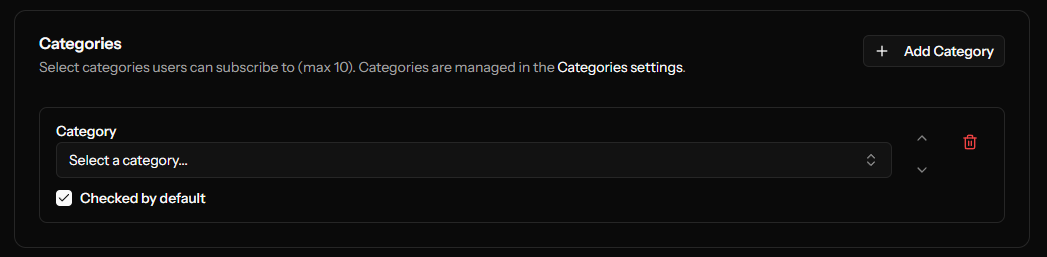
How It Works
- User sees the subscription prompt
- Categories are shown as checkboxes
- User selects their preferences
- Upon subscribing, their choices are saved as tags
- You can target users based on their preferences
Configuring Categories for Slidedown
- Create categories in the Categories section
- Go to Channels → Web Push → Prompts
- Configure the Category Slidedown
- Select which categories to show
- Set default checked states
- Order them using drag and drop
Using Subscriber Preferences
After users subscribe with category preferences:
- Their choices are stored as tags
- Create segments using tag rules:
- Tag "sports_news" has value "true"
- Target notifications to that segment
Example Categories
News Site
| Category | Tag Key | Color |
|---|---|---|
| Breaking News | breaking_news | Red |
| Daily Digest | daily_digest | Blue |
| Sports | sports | Green |
| Entertainment | entertainment | Purple |
E-commerce
| Category | Tag Key | Color |
|---|---|---|
| Flash Sales | flash_sales | Red |
| New Arrivals | new_arrivals | Blue |
| Price Drops | price_drops | Green |
| Back in Stock | back_in_stock | Orange |
Blog/Content
| Category | Tag Key | Color |
|---|---|---|
| New Posts | new_posts | Blue |
| Weekly Newsletter | newsletter | Purple |
| Special Announcements | announcements | Red |
Best Practices
Category Names
- Keep names short and clear
- Use user-friendly language
- Be specific about content type
Colors
- Use distinct colors for easy identification
- Match your brand when possible
- Be consistent across similar categories
Number of Categories
- Don't create too many (5-7 is usually enough)
- Combine similar types
- Remove unused categories
Descriptions
- Explain what subscribers will receive
- Set expectations for frequency
- Help users make informed choices
Limits
| Limit | Value |
|---|---|
| Categories per app | Recommended maximum of 20 |
| Name length | 100 characters |
| Tag key length | 50 characters |
| Description length | 255 characters |
Next Steps
- Configure Category Slidedown
- Create Segments using category preferences
- Send Targeted Notifications