Message Templates Overview
Message Templates allow you to create reusable notification formats with variable placeholders. Perfect for consistent branding and recurring notification types.
Why Use Templates?
- Consistency - Maintain brand voice across notifications
- Efficiency - Quickly create notifications from proven formats
- Variables - Dynamically insert content at send time
- Reusability - Use the same template for different content
Accessing Templates
Templates belong to your organization, not to individual apps. All apps in your organization share the same template library.
From the main navigation, click Templates. Templates also appear in the app sidebar for quick access.
Template List
View all templates showing:
- Template name
- Preview of title and body
- Variables used
- Actions (edit, delete)

Template Properties
| Property | Description | Limit |
|---|---|---|
| Name | Internal template identifier | 255 chars |
| Title | Notification title with variables | 255 chars |
| Body | Notification body with variables | 255 chars |
| URL | Click destination with variables | 2048 chars |
| Image | Default hero image (can include {{variables}} for dynamic image paths) | File or URL |
Variables
Variables are placeholders that get replaced with actual values when creating a notification.
Syntax
Use double curly braces: {{variable_name}}
Examples
Template Title:
{{product_name}} is Back in Stock!
When used:
- Variable:
product_name = "iPhone 15" - Result:
iPhone 15 is Back in Stock!
Template Body:
Get {{discount}}% off {{category}} today only
When used:
- Variable:
discount = 25,category = "Electronics" - Result:
Get 25% off Electronics today only
Creating a Template
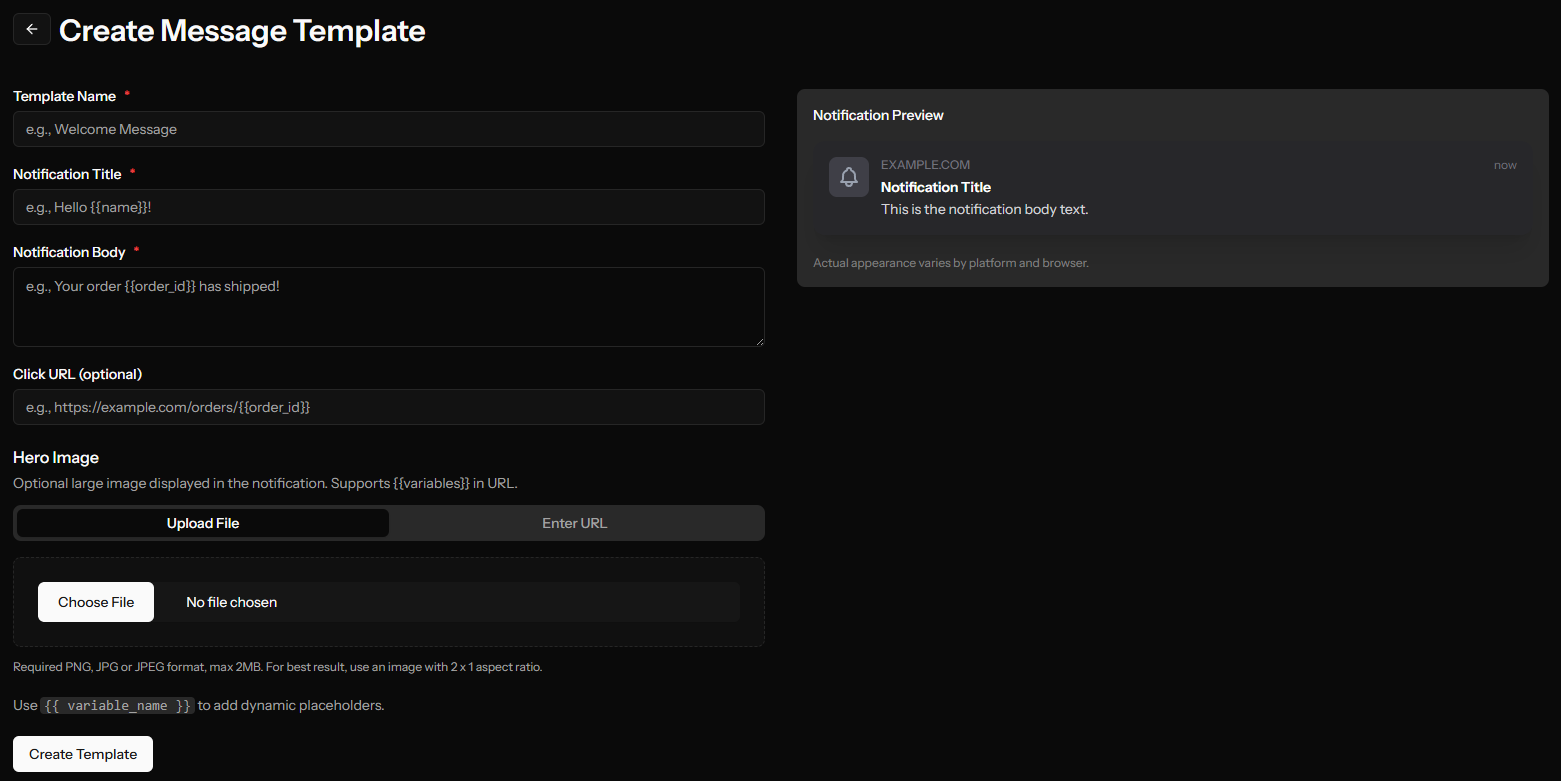
1. Navigate to Templates
Click Templates → Create Template
2. Fill in Details
| Field | Description |
|---|---|
| Name | How you'll identify this template |
| Title | Notification headline |
| Body | Notification message |
| URL | Where clicks go (optional) |
| Image | Default image (optional) |
3. Add Variables
As you type {{variable}} in any field:
- Variables are automatically detected
- They appear in the test inputs section
- Enter test values to see the preview
4. Preview
The right panel shows:
- Live preview with variable substitution
- Test different variable values
- See how the notification will look
5. Save
Click Create Template to save.
Editing Templates
- Click on a template in the list
- Modify any fields
- Variables update automatically
- Click Save Changes
Deleting Templates
- Click the delete icon on the template row
- Confirm deletion
Deleting a template doesn't affect notifications already created from it.
Using Templates
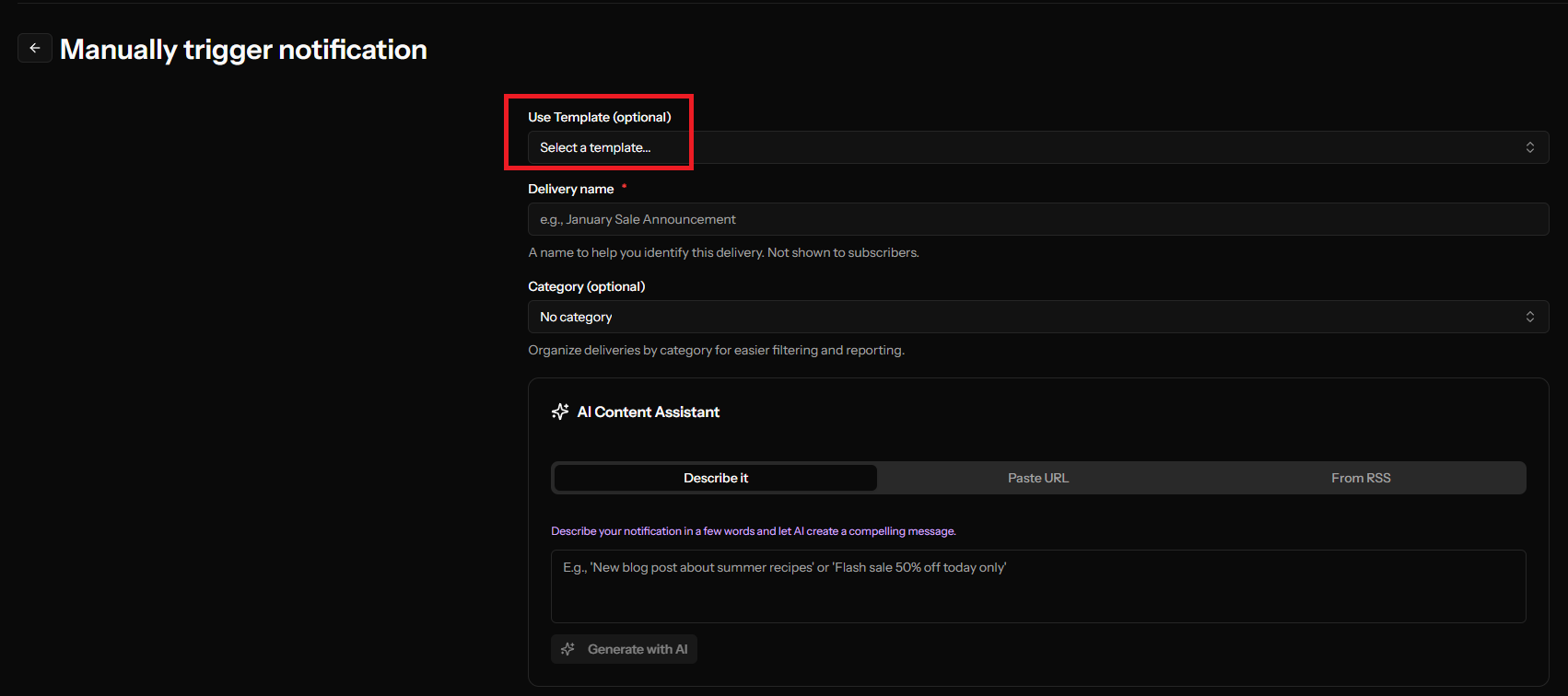
When creating a Manual Notification:
- Go to Triggers → Manual Trigger → Configure
- Click the Template dropdown
- Select a template
- Fill in variable values
- Fields are populated with the template content
- Modify if needed, then send
Template Examples
Product Alert
Name: Product Back in Stock
Title: {{product_name}} is Back in Stock!
Body: Hurry - {{product_name}} is available again. Limited quantities.
URL: https://shop.com/product/{{product_id}}
Sale Announcement
Name: Flash Sale
Title: {{discount}}% Off Everything - Today Only!
Body: Use code {{code}} at checkout. Ends {{end_time}}.
URL: https://shop.com/sale?code={{code}}
Content Update
Name: New Article
Title: New: {{article_title}}
Body: {{article_summary}}
URL: {{article_url}}
Event Reminder
Name: Event Reminder
Title: Reminder: {{event_name}} starts soon
Body: {{event_name}} begins {{start_time}}. Don't miss it!
URL: https://site.com/events/{{event_id}}
Variable Best Practices
Naming
- Use descriptive names:
product_namenotpn - Use snake_case:
article_titlenotarticleTitle - Be consistent across templates
Content
- Keep variable content concise
- Remember character limits apply after substitution
- Test with longest expected values
URLs
- Use variables for dynamic parts:
/product/{{id}} - Keep static parts static:
https://site.com/ - Test that URLs work with actual values
Organization-Wide Templates
Templates belong to your organization, meaning:
- All users in your organization can use them
- Templates work across all apps
- Changes affect everyone
Tips for Effective Templates
Do
- Create templates for recurring notification types
- Use clear variable names
- Test with realistic values
- Document what each template is for
Don't
- Over-complicate with too many variables
- Forget to test the preview
- Create one-off templates (just send directly)
- Use templates for unique content
Template Workflow
1. Create Template
       ↓
2. Define Variables
       ↓
3. Test Preview
       ↓
4. Save Template
       ↓
5. Use in Notifications
       ↓
6. Fill Variables
       ↓
7. Review & Send